


Welcome to our blog, where we uncover the lesser-known treasures hidden within the iPad. While many of us are well-acquainted with the iPad’s basic features, there are several lesser-known functionalities that could revolutionize the way you use your device. In this article, we’ll explore 5-6 such features that have the potential to significantly enhance your productivity and make your iPad experience even more rewarding.Whether you’re a seasoned iPad enthusiast or just beginning to tap into its capabilities, these features offer a wealth of possibilities to explore. So, join us as we embark on a journey to uncover the hidden gems of iPad functionality and discover how they can help you use your device more effectively.
Calculator via Spotlight
One common frustration among iPad users is the absence of a built-in calculator, especially considering the device’s ample screen size and utility for productivity tasks. While it may seem like an oversight, fear not, for there’s a workaround that can be a lifesaver in times of need.To access the calculator feature on your iPad, you can utilize the Spotlight search functionality. Here’s how:
Unlock Your Device: Begin by unlocking your iPad.
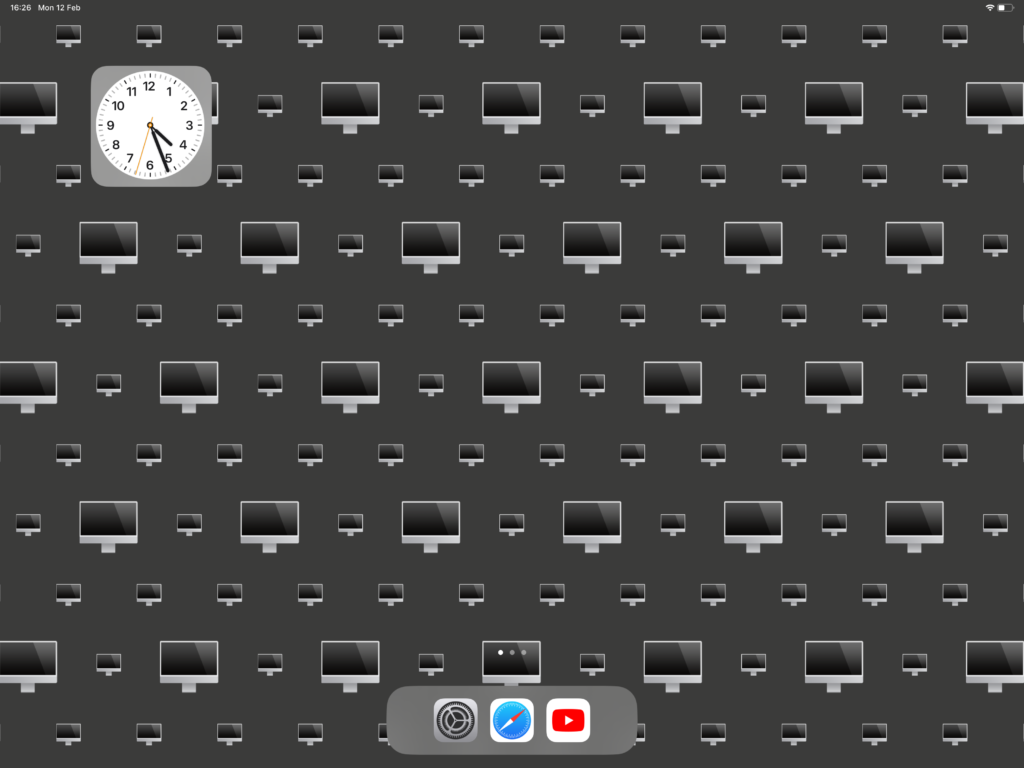
Activate Spotlight: On the home screen, initiate the Spotlight search gesture by swiping down from anywhere on the display. This action prompts a search bar to appear from the top.
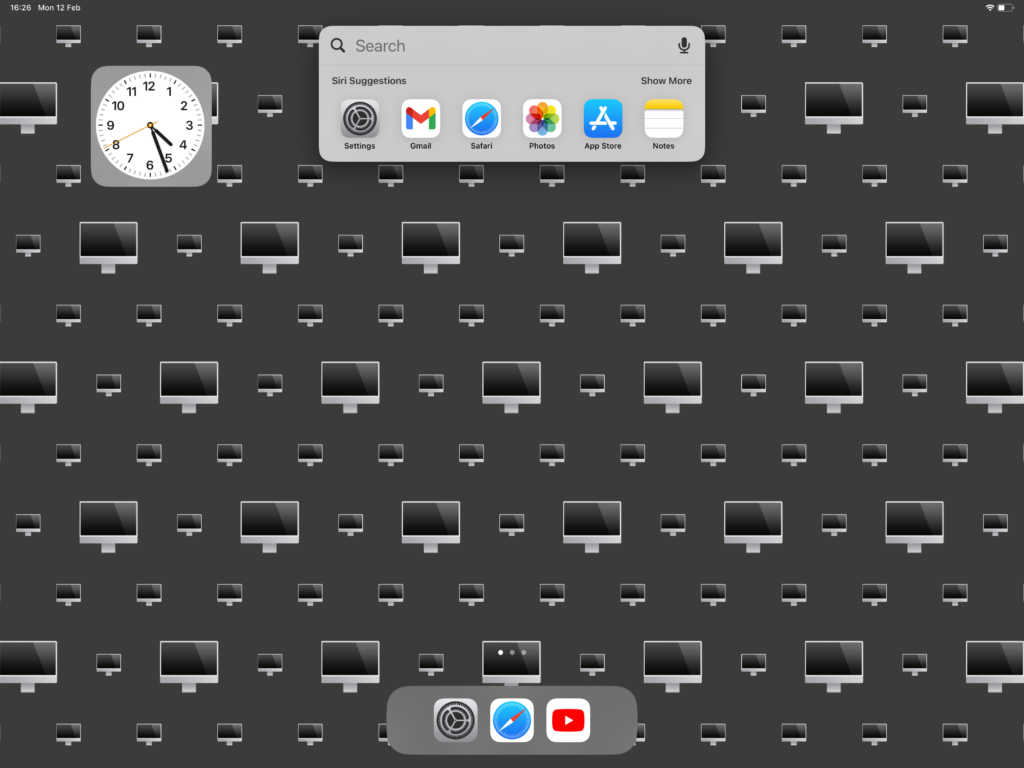
Spotlight Search Bar: The search bar that appears is your gateway to various functionalities, including calculations.
Perform Calculations: Utilize the Spotlight search bar to input mathematical equations. As you type, the results will dynamically appear, providing you with instant calculations.
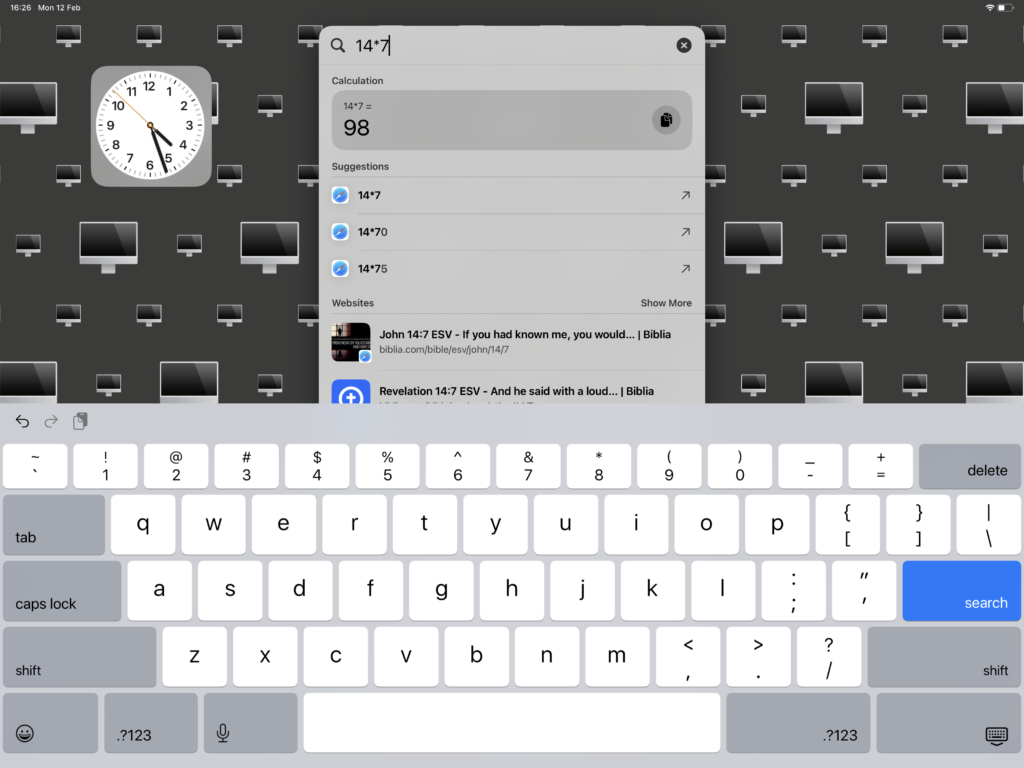
While it’s indeed intriguing to discover this feature, it’s worth noting that it’s not as comprehensive as a dedicated calculator app. Nonetheless, it serves as a temporary solution, allowing users to perform basic calculations without the need for third-party apps or additional downloads.Although we can appreciate this workaround, one can’t help but hope that Apple considers integrating a native calculator app into future iPad updates, streamlining the user experience for those who rely on their iPads for productivity tasks.
Hide Control Centre on Locked Device
Here’s a vital precaution for your iPad. Have you ever noticed that when your device is locked, you can still access Control Centre by swiping down from the top of the screen?
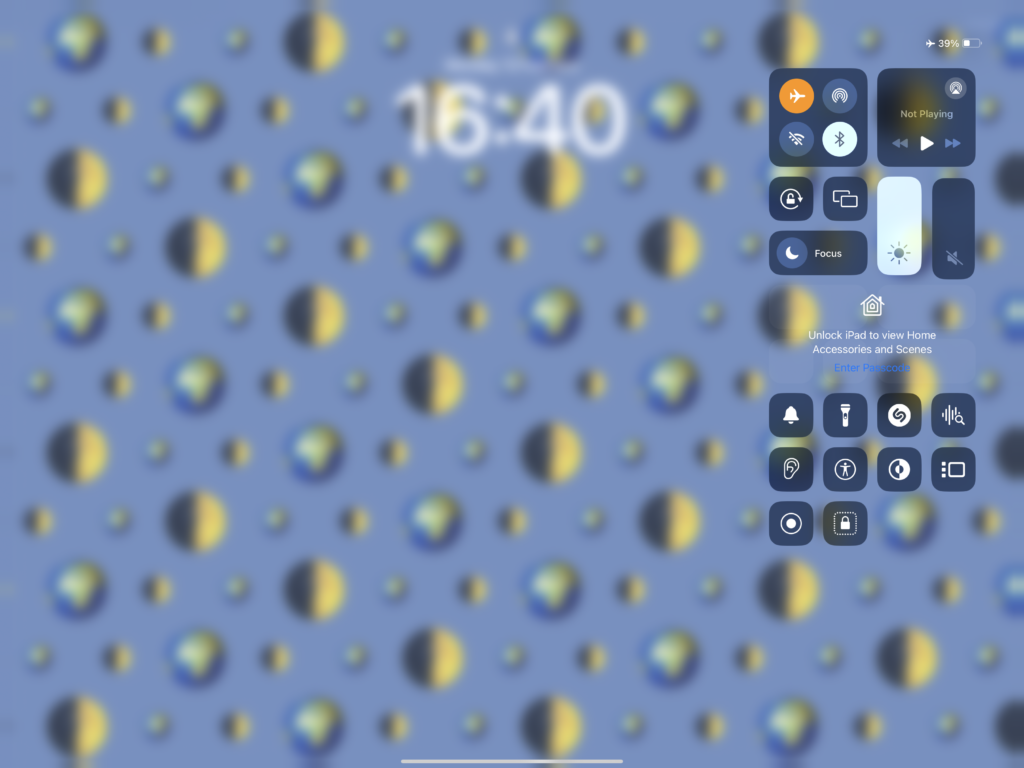
This grants access to settings like Wi-Fi and Bluetooth, which could pose a security risk if your iPad is lost or stolen.To enhance security and protect your device’s location privacy, follow these steps:
- Go to Settings: Open the Settings app on your iPad.
- Navigate to Face ID and Passcode: Look for the “Face ID & Passcode” or “Touch ID & Passcode” section and tap on it.
- Control Centre Settings: Scroll down to the “ALLOW ACCESS WHEN LOCKED” section.
- Disable Control Centre: Among the list of features that can be accessed when your device is locked, find “Control Centre” and turn it off.
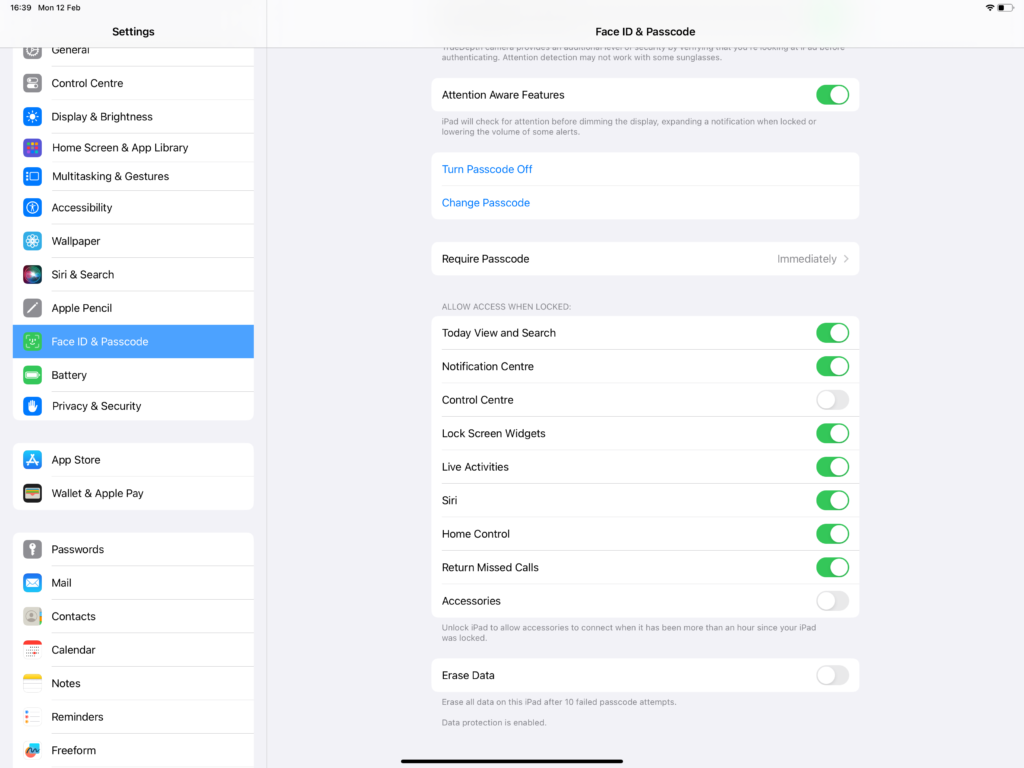
By disabling Control Centre on the locked screen, you prevent unauthorized access to critical settings, enhancing the security of your iPad, especially in the event of loss or theft.
This simple precaution ensures that your device remains protected and helps safeguard your personal data.Stay tuned for a comprehensive blog on the “Find My Device” feature, where we’ll delve into all the options available to help you protect your devices. We’ll update the link here once it’s published, so keep an eye out for more tips on device security!
Listen to what you read
Tired of reading lengthy articles? Fear not, your iPad has a handy feature that can read aloud for you. Here’s how to use it:
Open Safari and navigate to the article you want to listen to.
Look for the two “aA” icons on the left side of the search bar.
Tap on these icons and select “Listen to Page” from the options that appear.
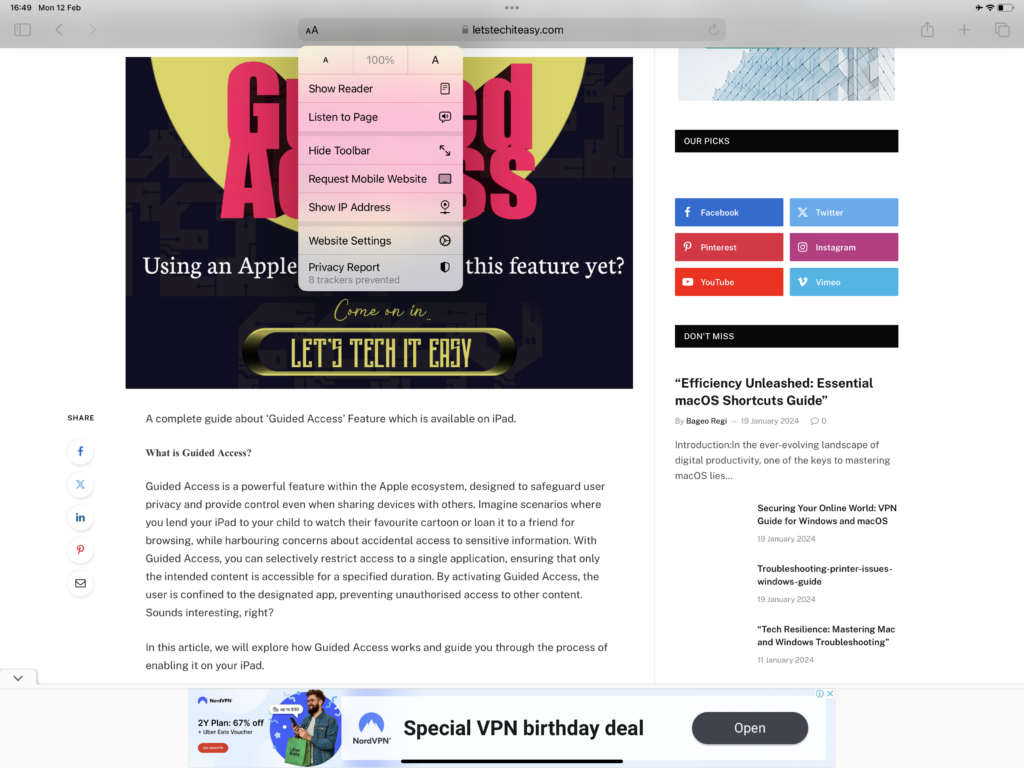
Now, sit back and relax as your iPad reads the article aloud for you. But wait, there’s more! You have full control over the playback with additional options like going backward, forward, pausing, or adjusting the speaking rate to your liking.
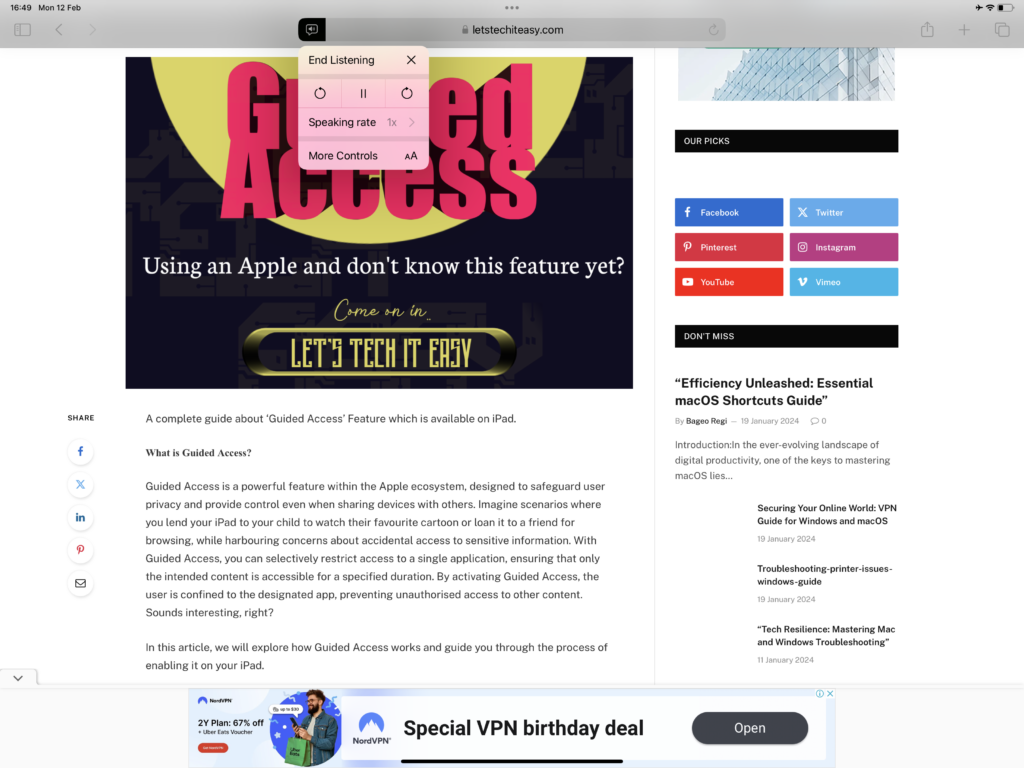
This feature isn’t just useful for when you’re tired of reading. Imagine you’re on a long drive or lounging on the beach – you can still catch up on your favorite articles without straining your eyes.Additionally, if you’re learning a new language or want to improve your pronunciation, listening to the text being read aloud can be incredibly helpful. You can follow along with the words as they’re spoken, enhancing your comprehension and fluency.So next time you’re feeling fatigued from reading or just want to relax while absorbing some knowledge, let your iPad do the talking for you!
Colour Filters
Looking to experience your device in a whole new light? Whether you have a penchant for minimalist aesthetics or simply want a change of pace, the Colour Filters feature on your iPad offers a fun and unique way to transform your screen.Have you ever felt overwhelmed by the myriad of colors on your device? Or perhaps you’re intrigued by the idea of viewing your favorite content in black and white? With Colour Filters, you can do just that!Here’s how to enable Colour Filters on your iPad:
Access Settings: Open the Settings app on your iPad.
Navigate to Accessibility: Scroll down and select “Accessibility.”
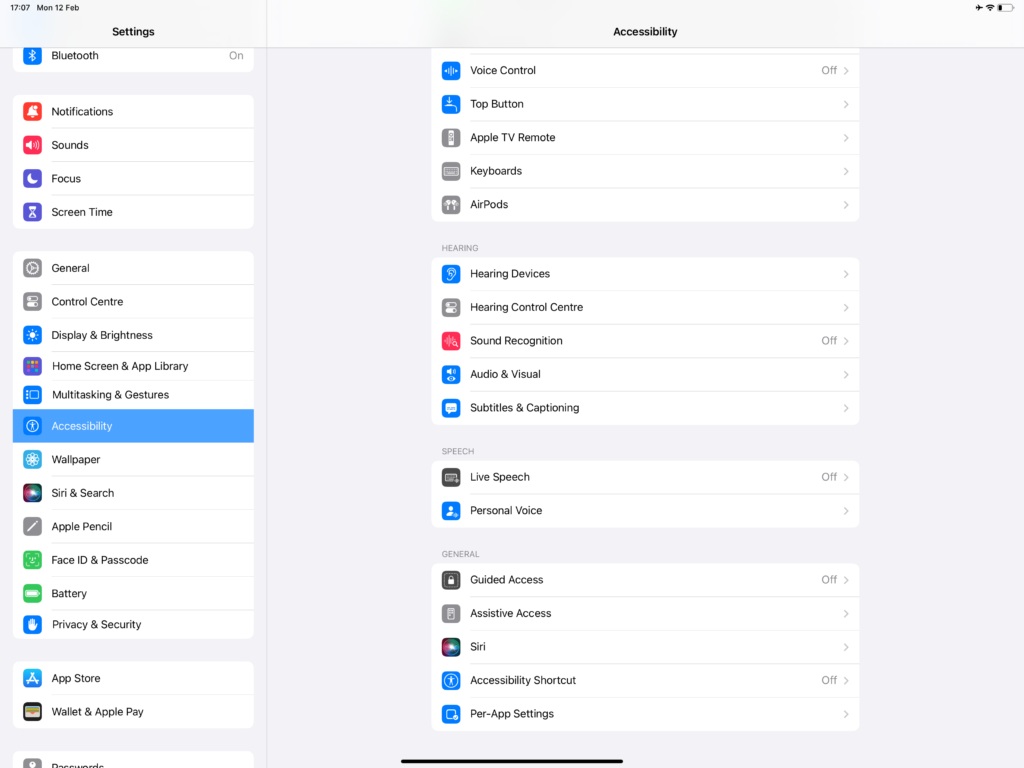
Find Accessibility Shortcuts: Look for the “Accessibility Shortcuts” option and tap on it.
Select Colour Filters: From the list of options, choose “Colour Filters” and toggle it on.
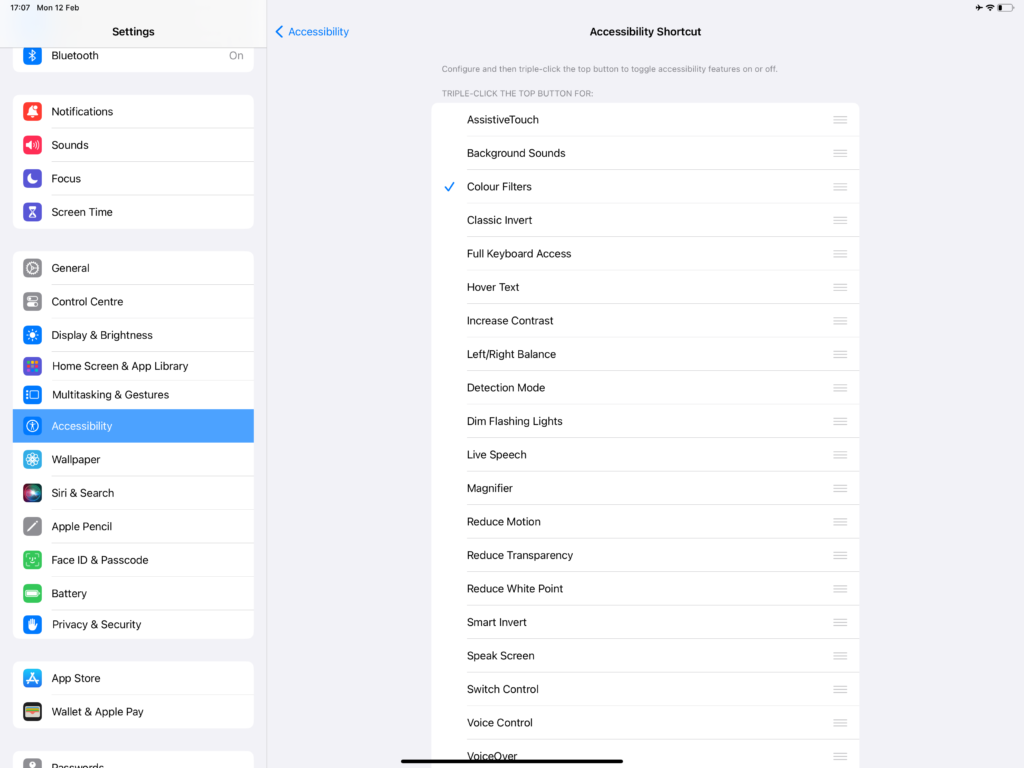
Now that you’ve enabled Colour Filters, you can easily switch between color and black-and-white mode using the Accessibility Shortcuts in Control Centre. Swipe down to get control centre. Look for Accessibility (man centred around a circle).
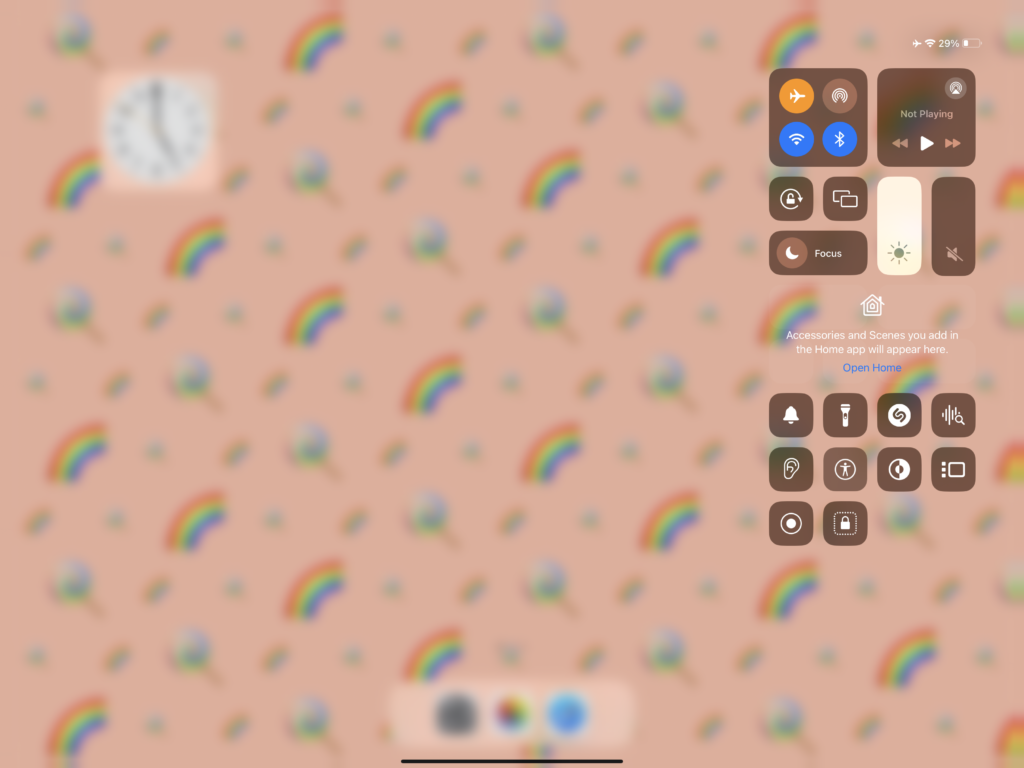
Select Colour Filters.

Boom!
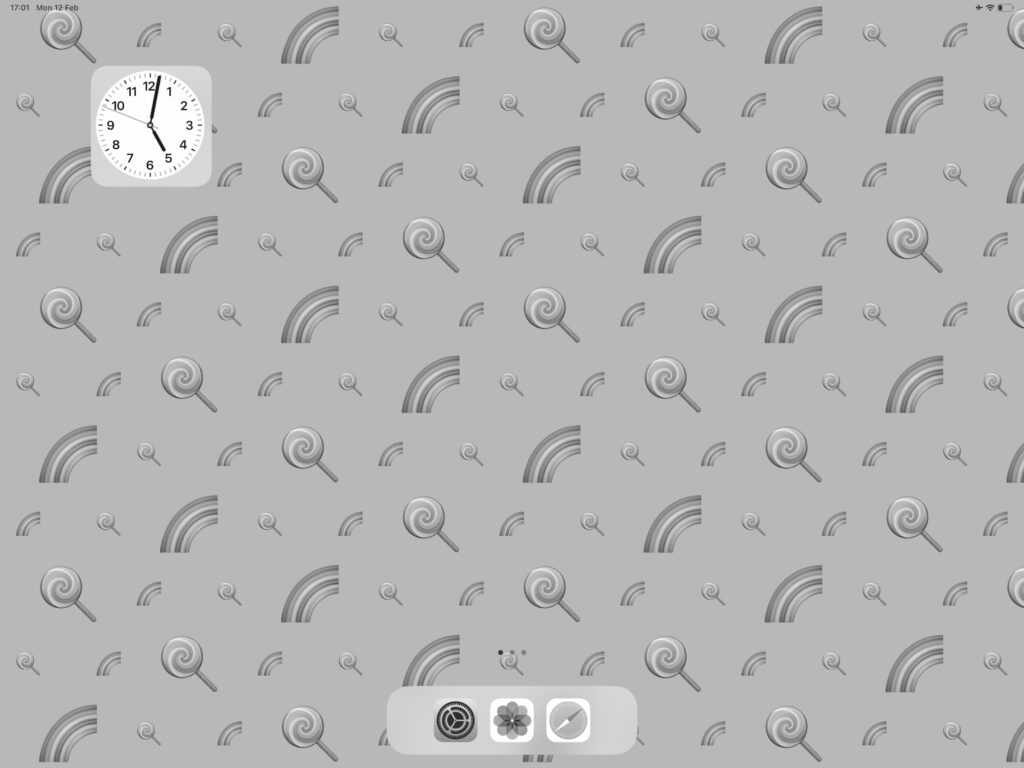
But why stop there? Experiment with watching your favorite shows, reading articles, or playing games in black and white for a whole new perspective. It’s a quirky and amusing way to shake things up and see familiar content in a fresh light.For example, watching a period film trailer on YouTube in black and white can offer a captivating and novel experience, especially with the high-quality screen of your iPad.We’d love to hear how you’re using Colour Filters to enhance your iPad experience! Share your thoughts and experiences with us, and stay tuned for our next blog as we explore more intriguing topics.
